
This guide explains how to connect Autodesk Construction Cloud (ACC) with Breadcrumb by creating a custom integration within Autodesk.
This process allows Breadcrumb to securely access your Autodesk data through Autodesk Platform Services (APS).
Prerequisites
Before starting, ensure the following requirements are met:
- You have Company Administrator access in Autodesk Construction Cloud.
- The Breadcrumb Dev Team has provided an APS Client ID to your Breadcrumb Customer Success Manager (CSM).
- Your CSM has shared this APS Client ID with you.
Step 1 — Obtain the APS Client ID
Your Breadcrumb Customer Success Manager (CSM) will provide you with an Autodesk Platform Services (APS) Client ID generated by the Breadcrumb development team.
You will need this ID when creating the custom integration in Autodesk Construction Cloud.
Step 2 — Open Autodesk Construction Cloud Account Admin
- Log in to Autodesk Construction Cloud.
- In the top-left corner, open the Account Admin dropdown menu.
Step 3 — Navigate to Custom Integrations
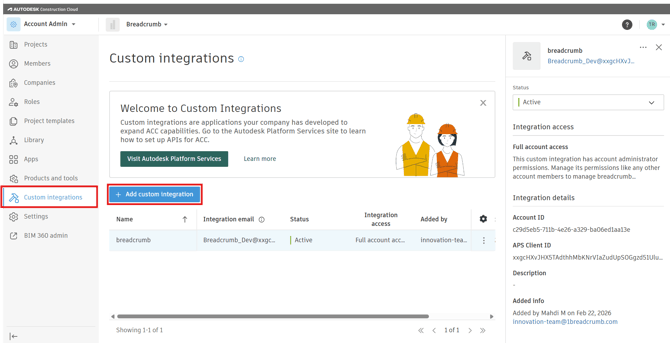
- In the left navigation panel, select Custom integrations.
Step 4 — Add a New Custom Integration
- Click Add custom integration.
This will open the Add custom integration configuration window.
Step 5 — Enter the APS Client ID
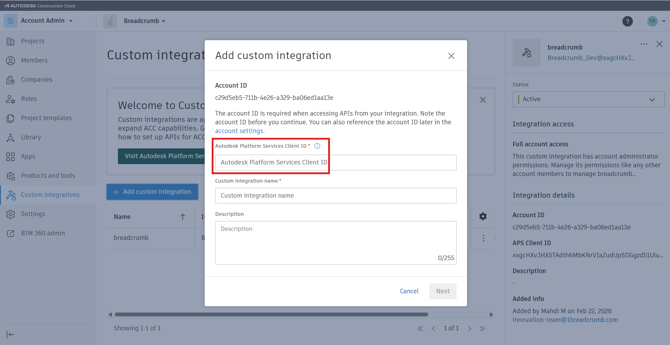
In the Autodesk Platform Services Client ID field:
-
Enter the APS Client ID provided by your Breadcrumb CSM.
Step 6 — Name the Integration
- In Custom integration name, enter:
Breadcrumb
You may optionally add a description.
Step 7 — Save the Integration
- Click Next.
- Review the integration details.
- Click Save to complete the setup.
Result
Your Breadcrumb integration will now appear in the Custom Integrations list and will be Active.
Breadcrumb can now securely connect to your Autodesk Construction Cloud account.