
Prerequisite
Before companies can sync:
- The Autodesk project must already be connected to Breadcrumb.
- The Breadcrumb Dev user must be added to the project.
After an Autodesk project has been connected to Breadcrumb, companies assigned to that project will automatically sync to the Breadcrumb Site Supplier List.
This allows project-specific suppliers and contractors to be managed within Breadcrumb.
How the Project Company Sync Works
Companies assigned to the project in:
Project Admin → Companies
will automatically sync to the Breadcrumb Site Supplier List for that project.
Step 1 — Open Project Admin
- Open the Autodesk project.
- Navigate to Project Admin.
- Select Companies.
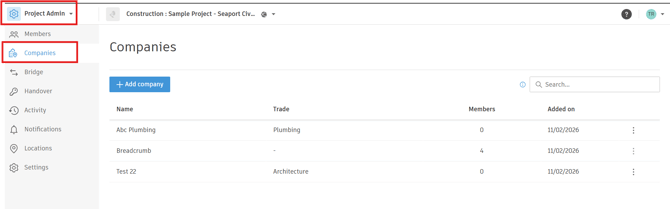
Step 2 — Add a Company to the Project
- Add the relevant company to the Project Companies list.
- Save the changes.
Once added, the company will automatically sync to the Breadcrumb Site Supplier List.
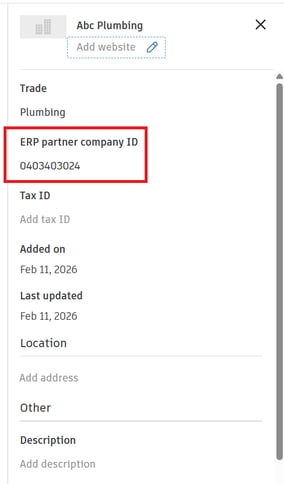
Important Requirement: ERP ID
Only companies with a valid ERP Partner Company ID will sync from Autodesk to Breadcrumb.
If a company does not have an ERP ID, it will not appear in Breadcrumb.
Data That Syncs
The following information is synchronized:
- Company Name
- ERP Partner Company ID
Sync Result
When a company is added to the Autodesk project:
Autodesk Project Company
⬇
Breadcrumb Site Supplier List
The company will now be available for use within the corresponding Breadcrumb site/project.
Important Notes
- The project must already be connected to Breadcrumb.
- Companies without an ERP Partner Company ID will not sync.
- Updates made in Autodesk will be reflected in Breadcrumb after synchronization.