
Once Autodesk Construction Cloud has been successfully connected to Breadcrumb, company records from Autodesk will automatically sync to the Breadcrumb Global Companies Register.
This ensures that company information can be reused across multiple projects within Breadcrumb.
How the Company Sync Works
Breadcrumb automatically synchronizes companies from:
Autodesk Construction Cloud → Account Admin → Companies
The following fields will sync:
- Company Name
- ERP Partner Company ID
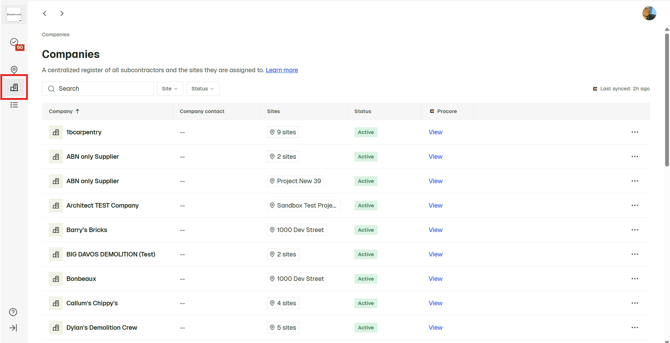
These companies will then appear in the Breadcrumb Global Company Register.
Important Requirement: ERP ID
Only companies that contain an ERP Partner Company ID will sync to Breadcrumb.
If the ERP Partner Company ID field is empty, the company will not be synced.
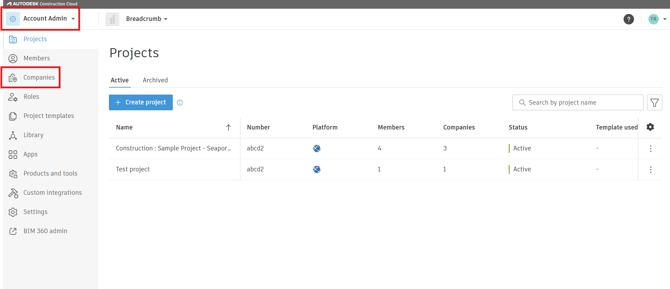
Step 1 — Navigate to Companies in Autodesk
- Log in to Autodesk Construction Cloud.
- Open Account Admin.
- Select Companies from the left-hand navigation.
(Example shown below)
Step 2 — Verify the ERP Partner Company ID
- Select a company from the list.
- Check the ERP partner company ID field.
(Example shown below)
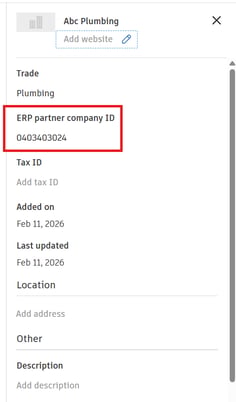
If this field contains a value, the company will automatically sync to Breadcrumb.
Sync Result
When the integration runs:
- Autodesk Company Name → Breadcrumb Company Name
- Autodesk ERP Partner Company ID → Breadcrumb ERP ID
These companies will appear in the Breadcrumb Global Companies Register.
Important Notes
- Companies without an ERP Partner Company ID will not sync.
- Updating the ERP ID in Autodesk will update the record in Breadcrumb during the next sync cycle.